As an Amazon Associate I earn from qualifying purchases.
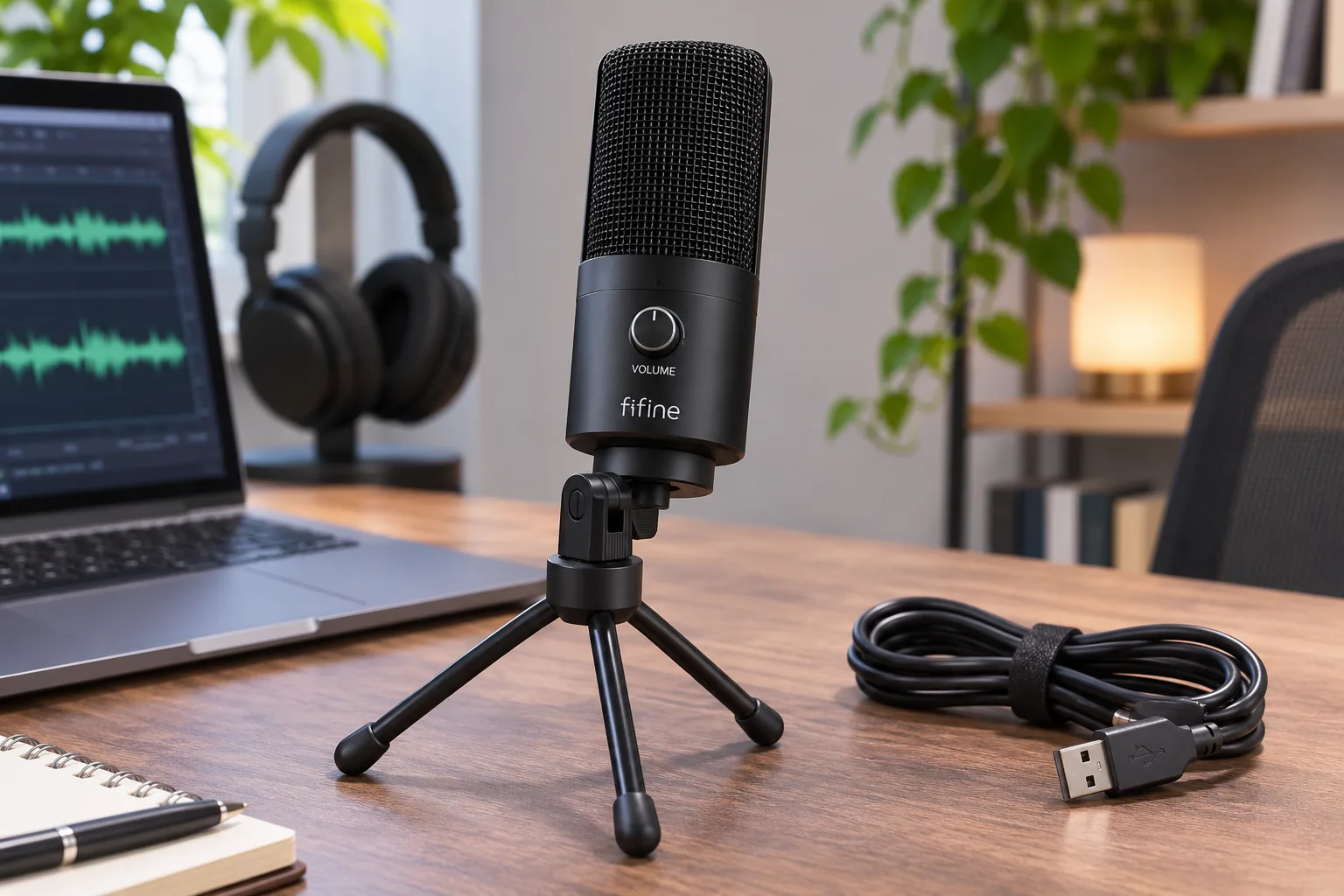
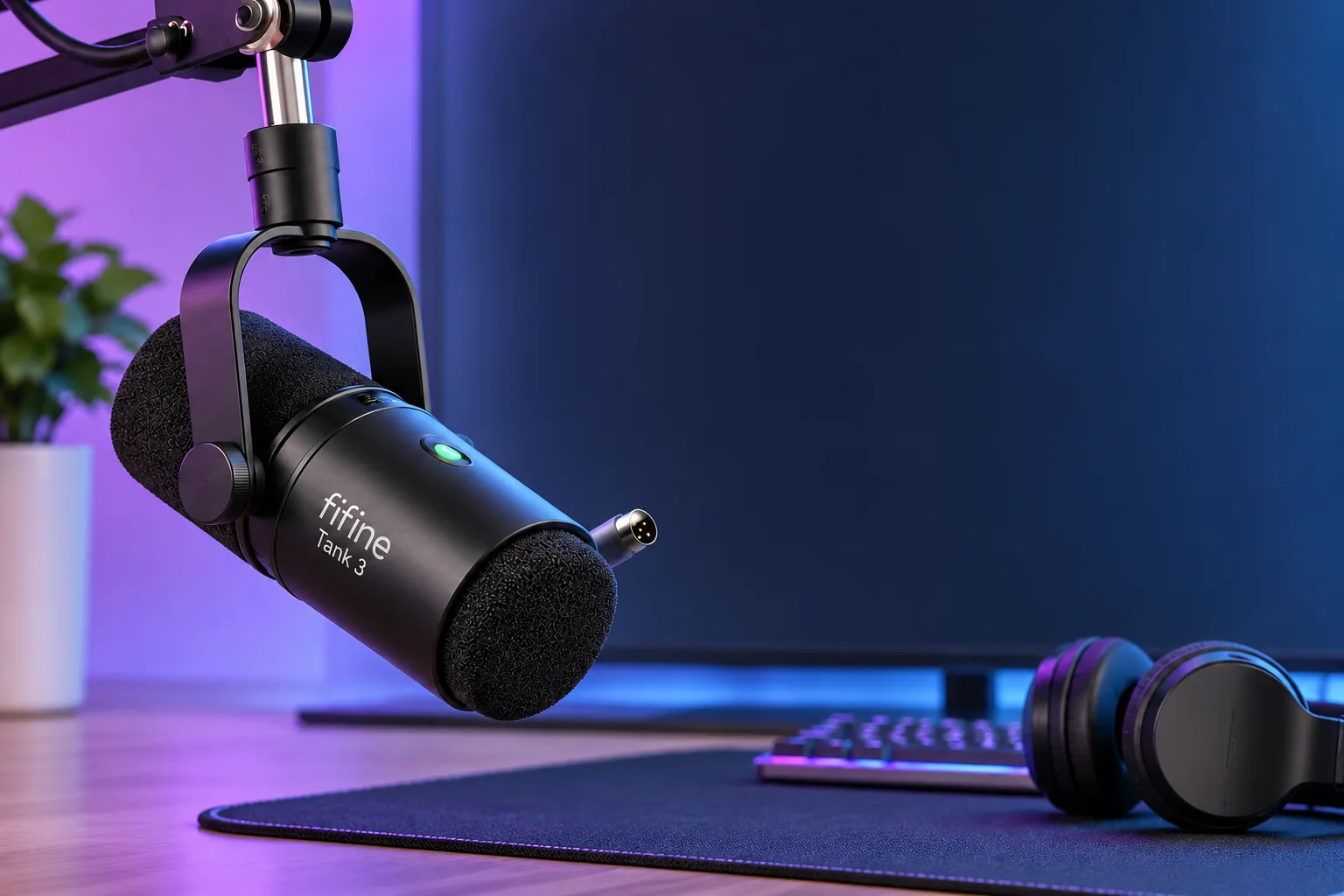
The FIFINE Tank 3 is a USB-C/XLR dynamic cardioid microphone. For this guide, the exact product-page option is Tank3 without XLR Cable: FIFINE says its USB setup uses a USB-C-to-USB-A cable, while an XLR connection needs a separately obtained XLR cable and an audio interface, mixer, or recorder with an XLR input. The microphone does not come with a stand, so plan that mounting purchase separately. The page also displays a differently named Tank3 Neo with XLR Cable option; this guide does not assume that is the same SKU with only a cable added. See FIFINE's Tank3 page and its exact option labels.
In this guide
- What the Tank3 listing confirms
- USB or XLR setup
- Stand and mounting fit
- Windows and Mac setup checks
- Frequently asked questions
What the FIFINE Tank 3 listing confirms
| Setup detail | What FIFINE documents | What to plan for |
|---|---|---|
| Microphone | Tank3; dynamic cardioid | Use the exact model name on the selected option |
| Digital connection | USB-C on the microphone; the supplied cable runs to USB-A on the computer end | Check which host port your computer has before choosing an adapter or hub |
| Analog connection | XLR | XLR cable and an audio interface, mixer, or recorder with XLR input |
| Stand | No stand included | Buy a stand or arm separately and check its desk clamp and load specifications |
| Mount | FIFINE says the yoke uses 3/8-inch and 5/8-inch threads | Confirm the selected support accepts one of those sizes and the full assembly fits |
| Package detail | Selector includes “Tank3 without XLR Cable” and “Tank3 Neo with XLR Cable” | Do not treat those distinct labels as interchangeable; verify the exact selected option |
This is a list of details confirmed in the reviewed official pages, not a complete box inventory. FIFINE's setup support confirms the USB cable and explains the connection paths; the product page states that a stand and XLR cable are not included with the documented Tank3 option. If another accessory matters to your purchase, use the live item description for the exact selected option rather than assuming it is in the box. FIFINE's setup article covers the Tank3 cable and ports.
Choose USB or XLR before you buy
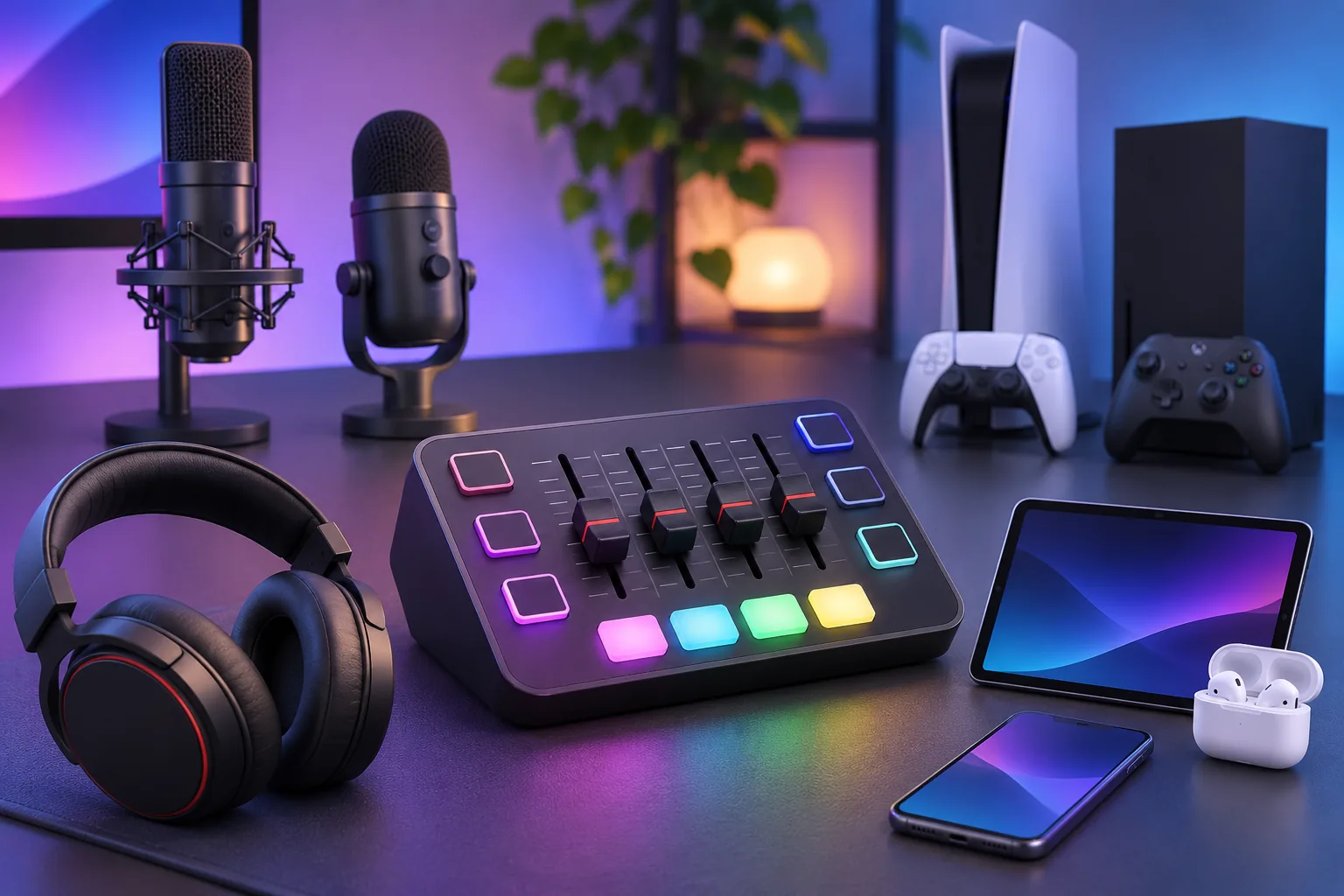
Use USB for a direct computer setup. Connect the supplied cable to the microphone's USB-C port and the computer-side USB-A plug to the host. FIFINE names PC, laptop, Mac, PlayStation console, and mobile devices used through a USB adapter as possible USB endpoints. That list does not validate every device, phone adapter, app, or console configuration. If you plan to use a phone or a specific console, check that exact connection path before relying on it.
Choose XLR when you already have external audio equipment or plan to add it. The Tank3's XLR connection does not plug directly into a computer's USB port. You need an XLR cable and receiving equipment with an XLR microphone input, such as an interface, mixer, or recorder. FIFINE explicitly says the XLR cable is not included with the named Tank3 option. A mixer or interface is also a separate component; owning this microphone alone does not provide the XLR signal path.
A useful pre-purchase check is to write down the complete route: microphone, cable, computer or receiver, and headphones or speakers. For USB, identify the computer port and the app where the mic will be selected. For XLR, identify the interface or mixer's input and how you will monitor. This keeps a matching connector from being mistaken for a complete working setup.
FIFINE Tank 3 stand and mounting fit
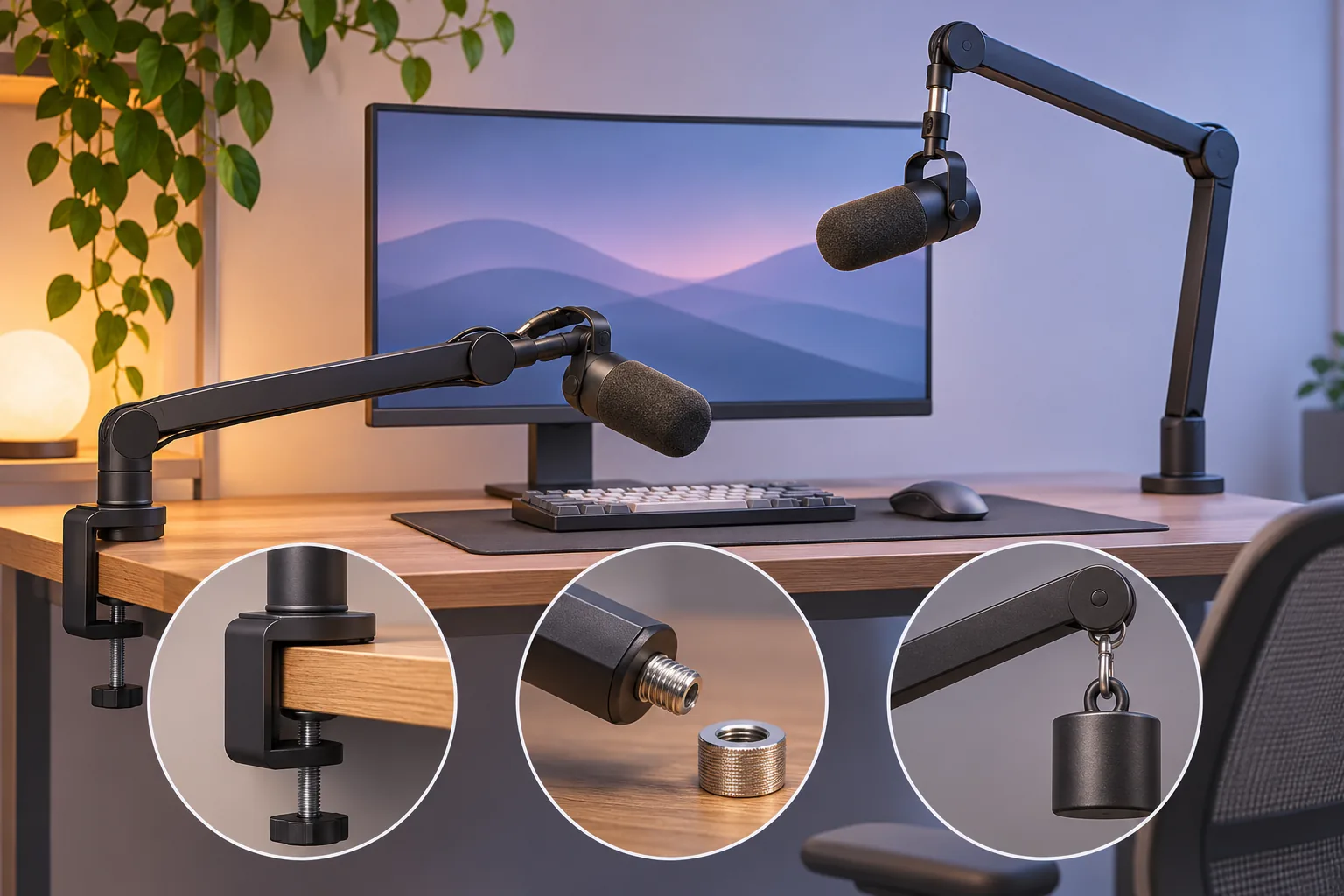
The Tank3's default listing does not include a desk stand or boom arm. FIFINE says its one-arm yoke provides 3/8-inch and 5/8-inch threads, so a stand using either matching thread can attach without a separate adapter according to the setup article. That establishes thread sizes; it does not prove that every arm, shock mount, clamp, or desk will fit the microphone and your workspace.
Before ordering an arm, check its own clamp range against the thickness and shape of the desk edge where it will sit. Confirm there is clearance under the desktop and that the arm's load specification covers the microphone and all mounted parts together. The reviewed Tank3 material does not publish a Tank3-specific arm load rating or a desk-clamp range, so do not transfer a limit from another FIFINE arm or microphone. If you prefer a tabletop stand, verify that the selected stand lists the compatible thread and can support the mic securely.
The product page selector also names “Tank3 Neo with XLR Cable.” Because the product page does not establish that this named option has the same hardware and specifications as “Tank3 without XLR Cable,” compare the precise label and description before checkout. The details above apply to the exact Tank3 option named in this guide; they should not be carried over to Tank1, Tank2, Tank6, or another Tank-family product.
Basic Windows and Mac setup
For USB, start by connecting the microphone, then select the FIFINE microphone as the system input and in the recording or meeting app you will use. FIFINE's setup article recommends checking that the input-level meter responds while you speak. On Mac, select the mic in sound input settings; on Windows, check the recording input and level. Menu names differ among operating-system versions, so use the current sound-settings screen rather than relying on an old menu path.
FIFINE says its USB microphones use the operating system's built-in audio driver, so a separate Tank3 driver download is not required according to its support page. If Windows does not show the mic, check whether a USB audio device appears in recording settings, try another USB port, and, if available, test a second computer. If the computer detects the input but your app records silence, verify the app input and its microphone permission. These are diagnostic steps from FIFINE's support guidance, not a guarantee that every problem has the same cause.
For XLR, first confirm that the interface, mixer, or recorder recognizes the input, then set that input in your recording app. The USB troubleshooting steps apply to USB recognition, not the analog XLR path. Keep the two routes separate while diagnosing a problem: check the cable and receiver for XLR, and the USB port and selected system input for USB. FIFINE's Tank3 setup and recognition articles and USB troubleshooting guidance cover those checks.
Frequently asked questions
Does the FIFINE Tank 3 include an XLR cable?
FIFINE labels one option “Tank3 without XLR Cable” and says the documented Tank3 package does not include an XLR cable. The page also shows a separately named Tank3 Neo with an XLR cable; do not assume it is identical to the Tank3 option unless the exact current listing confirms that.
Does the Tank3 come with a stand?
No stand is included in FIFINE's Tank3 product description. The support article says the yoke has 3/8-inch and 5/8-inch threads. Buy a suitable stand or arm separately and check its clamp and load specifications for your setup.
Can I connect the Tank3 to a phone?
FIFINE says a mobile device can be used through a USB adapter, but the reviewed support page does not confirm every phone or adapter. Check the port, adapter, app, and operating-system support for your exact device before purchase.
Do I need to install a Tank3 driver?
FIFINE says its USB microphones use built-in operating-system audio drivers. If the Tank3 is not detected over USB, check the selected input, USB port, and whether another computer recognizes it; an XLR setup follows a separate route through external audio equipment.
For a broader FIFINE microphone shortlist, see our FIFINE microphone guide. If your setup depends on an audio mixer, our FIFINE SC3 fit guide covers its own input and device limits. Before choosing the Tank3, confirm the selected option, add the stand or arm you need, and match USB or XLR to equipment you already own.