As an Amazon Associate I earn from qualifying purchases.
To connect the standard AULA F75 over Bluetooth, move its mode switch to BT, hold Fn + 1 for about three seconds until the blue indicator flashes quickly, then select the matching AULA-F75 name in your computer or tablet’s Bluetooth menu. For the 2.4GHz receiver, select 2.4G and insert the receiver; if it does not reconnect, put the keyboard into manual pairing mode before inserting the receiver. These steps come from AULA’s F75 support FAQ and English manual, not hands-on testing. AULA’s F75 FAQ (S01) · F75 manual (S02)
Quick check: Use the correct mode first. Bluetooth uses the host device’s Bluetooth menu; 2.4GHz uses the keyboard’s USB receiver. The two wireless options have different pairing steps.
On this page
- Bluetooth pairing steps
- Bluetooth channel pairing slots
- 2.4GHz receiver setup and re-pairing
- Fixing an unstable 2.4GHz connection
- If keys do not respond as expected
- Frequently asked questions
Bluetooth pairing steps
- Select BT mode. Move the F75’s mode switch to BT.
- Start pairing on a channel. Hold Fn + 1 for about three seconds. AULA says the indicator changes from a slow flash to a fast blue flash when pairing mode starts. S01
- Open Bluetooth settings on the host. Turn on Bluetooth on the computer, tablet, or other device and search for the keyboard.
- Choose the F75 name. The manual lists AULA-F75 3.0 KB and AULA-F75 5.0 KB as Bluetooth device names. Select the name that appears for your keyboard; do not assume that every F75 revision displays both. S02
- Confirm the link. AULA’s FAQ says the blue light stays on briefly after connection. The FAQ and manual give different durations, so use the indicator as a confirmation rather than treating an exact number of seconds as a pass/fail test. S01 · S02
If the keyboard does not appear, check that the switch is on BT and that the selected channel is flashing quickly before searching.
Bluetooth channel pairing slots
The F75 manual documents three Bluetooth channels. Hold Fn + 1, Fn + 2, or Fn + 3 for about three seconds to put the corresponding channel into pairing mode. The cited manual does not establish a gesture for switching back to an already paired host, so this guide does not prescribe one. The channel mapping is specific to the F75 revision it covers. S02
Set up or re-pair the 2.4GHz receiver
For normal 2.4GHz use, move the F75’s switch to 2.4G and plug the keyboard’s USB receiver into the host’s USB port. AULA’s manual says the receiver is paired at the factory by default, so manual re-pairing is usually unnecessary. S02
If the receiver is connected but the keyboard does not respond, use AULA’s manual re-pairing order: switch the keyboard to 2.4G, hold Fn + ~ for about three seconds until the ~ key flashes cyan quickly, and then insert or reinsert the receiver. Keep the keyboard close to the receiver while pairing. AULA says the cyan ~ light staying on briefly indicates a successful link. S01
The order matters: enter pairing mode first, then insert the receiver. If the receiver was already plugged in, remove it before starting the sequence and reinsert it while the keyboard is in pairing mode.
Fix an unstable 2.4GHz connection
If 2.4GHz connects and then drops or behaves inconsistently, AULA recommends trying a USB 2.0 port, placing the receiver farther from other wireless receivers, and avoiding a metal-cased USB hub. After changing the receiver’s location, repeat the re-pairing sequence if needed: 2.4G mode, hold Fn + ~ until rapid cyan flashing, then insert the receiver. S01
| Symptom | First check | Next documented step |
|---|---|---|
| F75 is missing from Bluetooth scan | BT mode and rapid blue flashing after holding Fn + 1 | Search for the F75 name listed in the manual |
| 2.4GHz does not connect | 2.4G mode and receiver inserted | Hold Fn + ~ until rapid cyan flashing, then insert the receiver |
| 2.4GHz is unstable | Receiver location and nearby wireless receivers | Try USB 2.0, avoid a metal hub, then re-pair |
| Keys do not respond or type unexpectedly | Battery level and selected system mode | Check the Win-key lock and selected host mode |
If keys do not respond as expected
AULA’s F75 FAQ recommends charging the keyboard if the battery is low and checking that its system mode matches the connected device: Fn + W for Windows, Fn + Q for Android, and Fn + E for macOS. It also says to check whether the Windows key is locked; Fn + Win toggles that lock. These checks address input behavior and are separate from Bluetooth or receiver pairing. S01
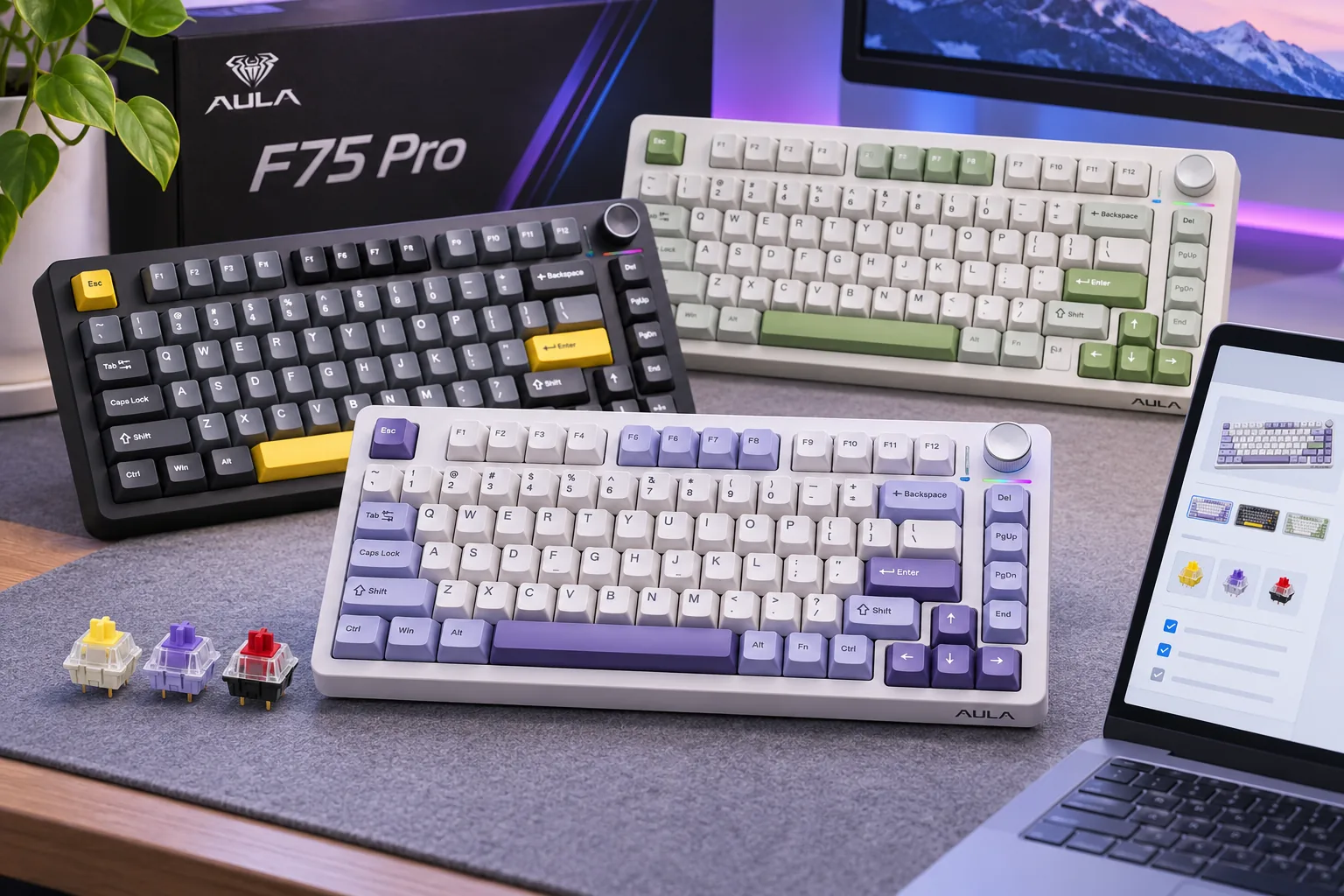
Keep the model boundary clear: this guide covers the standard/base AULA F75. AULA lists the F75 Pro, F75 HE, and F75 MAX separately, and their controls or pairing instructions may differ. For model selection and the base F75’s documented specifications, see the existing AULA F75 buying guide.
Frequently asked questions
How do I put the AULA F75 into Bluetooth pairing mode?
Switch the keyboard to BT, then hold Fn + 1 for about three seconds until the blue indicator flashes quickly. Open Bluetooth settings on the host and select the AULA-F75 device name that matches the keyboard. S01 · S02
What are Fn + 1, Fn + 2, and Fn + 3 for?
The manual identifies three Bluetooth channels: Fn + 1, Fn + 2, and Fn + 3. Hold the matching combination for about three seconds to enter pairing mode on that channel. Keep the keyboard’s switch in BT mode. The cited text does not establish a gesture for switching back to an already paired host, so this guide does not prescribe one. S02
How do I reconnect the F75’s 2.4GHz receiver?
Select 2.4G mode and insert the receiver. If that does not work, hold Fn + ~ for about three seconds until the key flashes cyan quickly, then insert the receiver. Keep the keyboard close to the receiver during manual pairing. S01
Next step
Start with the mode switch and the connection type you want: BT pairs through device settings, while 2.4GHz uses the USB receiver. If the standard F75’s documented steps do not resolve the issue, verify the model printed on your keyboard before using another model’s instructions. See the AULA keyboard buying guide for help distinguishing the F75 from other AULA models.
Sources checked November 17, 2026
- S01 — AULA F75 FAQ
- S02 — AULA WIND F75 User Manual