As an Amazon Associate I earn from qualifying purchases.
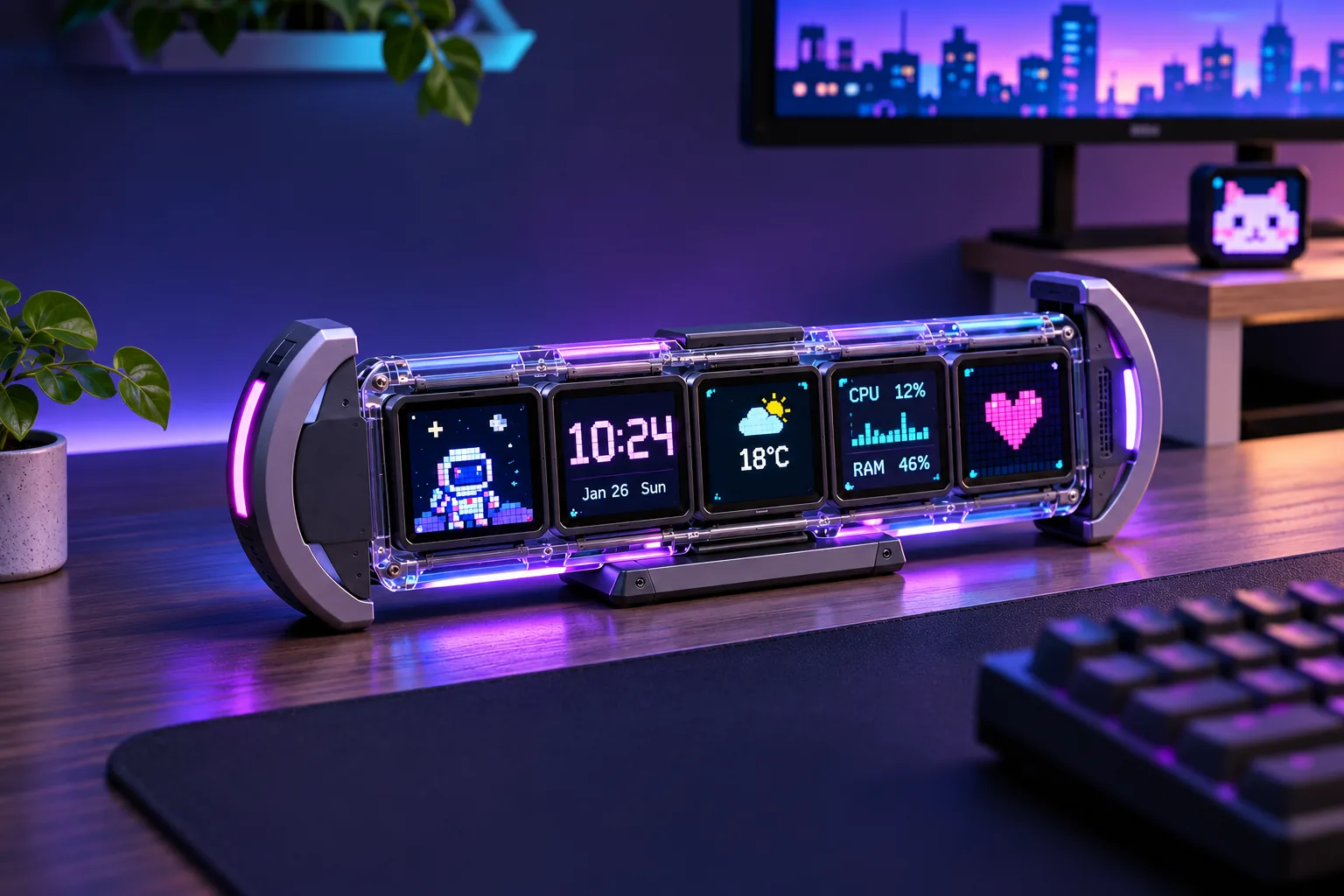
To set up a Divoom Times Gate, connect it to power, use the Divoom app to add the Times Gate model, and join a 2.4 GHz Wi-Fi network. Once it syncs, assign a clock or another supported widget to each screen and test one simple item before customizing the whole display. Times Gate is a five-screen information display; its setup is different from the Times Frame photo frame and Pixoo-64 II. (Times Gate product page; Divoom FAQ)
In this guide
- First-time setup
- Clock and screen assignment
- Wi-Fi troubleshooting
- Model-specific boundaries
First-time setup
- Power the display and bring it close to your phone and router. Keep it connected to power during setup. Avoid starting on a guest network or public Wi-Fi with a sign-in page.
- Open the current Divoom app. Update it if needed, sign in if the app requests it, and allow the Bluetooth or nearby-device and local-network permissions it asks for. The exact permission names depend on your phone.
- Add the correct model. Choose Add Device and select Times Gate in the app’s device list. Keep the app open while discovery and setup run.
- Select a 2.4 GHz Wi-Fi network. Times Gate’s official product information specifies 2.4 GHz. Enter the password carefully, including capitalization, and submit it in the app. If your router combines 2.4 and 5 GHz under one network name and setup fails, use a separately named 2.4 GHz network or temporarily test a phone hotspot that provides 2.4 GHz.
- Wait for sync, then test one simple item. Start with a clock or basic widget. Confirm it appears before building a more elaborate layout. The official Wi-Fi guide recommends keeping the device near the phone during the connection process. (Wi-Fi setup guide; app guide)
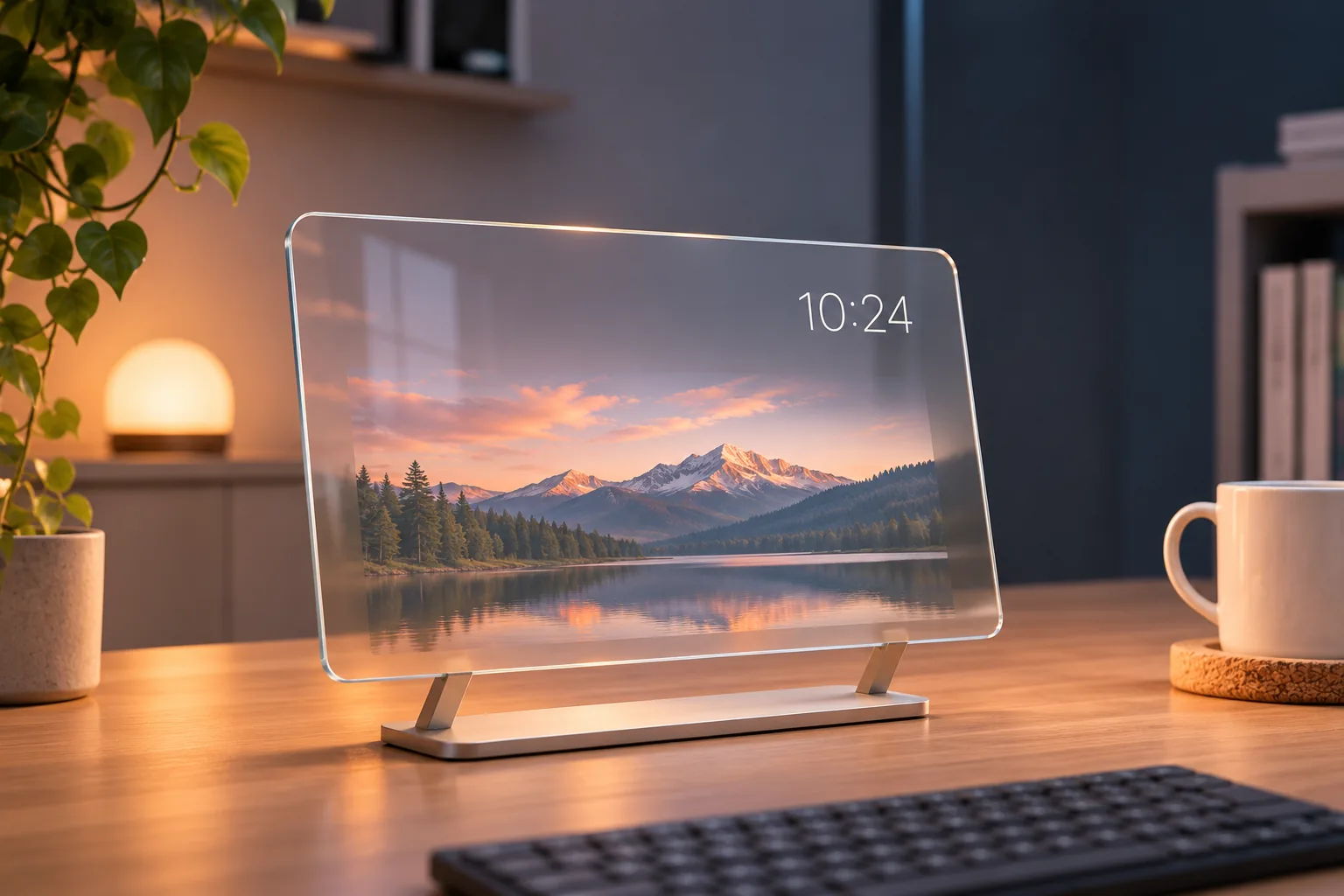
If the app labels have changed, follow the Times Gate path in the current app rather than selecting a similarly named display. Times Frame is a separate 2.4 GHz photo/video frame; Pixoo-64 II is a different model with a separately documented dual-band specification. (Divoom app guide)
Set a clock and assign content to screens
For a world clock, choose a clock-style widget in the app, assign it to one of Times Gate’s screens, and select the city for that clock. Repeat the process for another screen if you want a second city. Divoom’s Times Gate guide documents this widget → screen → city sequence. (World-clock setup guide)
The FAQ says to connect the device to the app and open its clock/time setting; in most cases the display syncs with phone time. If the local clock is wrong, check the phone’s date, time, and time-zone settings, reconnect or sync through the app, and verify again. Divoom does not publish a precise Times Gate local time-zone menu path or detailed daylight-saving behavior, so do not assume a particular menu label or automatic DST outcome.
Add other supported content one screen at a time. For a custom item that should appear on multiple panels, apply or upload it to each intended screen. Test each assignment before arranging all five panels; if an item stays unchanged, confirm it was applied to that screen and that the display has completed syncing. Available widgets and data refresh depend on app support, connectivity, and the feature’s data source. (Divoom FAQ)
Troubleshoot Wi-Fi and discovery
The app cannot find Times Gate. Keep the phone nearby, reopen or update the app, and allow the requested discovery permissions. Confirm the display is powered. If it was previously paired or controlled by another phone, remove stale connection records as the FAQ recommends, then try adding it again.
Your Wi-Fi does not appear. Check that you are selecting a 2.4 GHz network. Times Gate’s published setup information does not support treating Pixoo-64 II’s dual-band specification as applicable to this model. Avoid captive-portal public networks; try a home network or a compatible phone hotspot to separate router issues from device discovery.
Setup stalls near 40% or 60%. Divoom’s FAQ offers general setup advice: around 40%, make sure the app is current and the 2.4 GHz connection is stable; around 60%, recheck password capitalization and test a home network or hotspot. These are general troubleshooting suggestions, not a Times Gate-specific error-code diagnosis. (Divoom FAQ)
The clock or widget remains stale. Confirm Wi-Fi and internet access, wait for sync, and test one basic clock widget. For a world clock, verify the selected city. For custom content, reapply it to the target panel. Online weather, stock, or social information depends on the supported feature and its data source; the documentation does not promise continuous live refresh.
If the basic checks do not work, restart the display and app, then record your phone model and OS, app version, network band, and the step where setup stops before contacting Divoom support. Do not use a reset-button location or hold duration from another Divoom model; the reviewed sources do not establish a Times Gate-specific reset sequence.
Keep the models separate
Times Gate is the powered five-screen information dashboard described above. Times Frame is a separate photo/video frame with its own setup guidance. Pixoo-64 II’s dual-band Wi-Fi details do not apply to Times Gate, which Divoom documents as 2.4 GHz. Likewise, do not copy reset steps from older Pixoo devices onto Times Gate. (Divoom FAQ; Divoom app guide)
For the companion display comparison, see our Divoom desk-display guide. For a separate frame setup topic, see our Times Frame buying guide.
Frequently asked questions
Does Times Gate use 2.4 GHz or 5 GHz Wi-Fi?
Divoom documents Times Gate on 2.4 GHz Wi-Fi. If your router uses a combined network name and setup does not complete, try a separate 2.4 GHz SSID or a compatible hotspot.
How do I put different clocks on the screens?
Choose a clock widget, assign it to a screen, and select that clock’s city in the app. Repeat for each screen and city you want to configure.
Can I use the Pixoo-64 II setup steps?
No. Pixoo-64 II is a distinct device with its own dual-band Wi-Fi details. Use Times Gate-specific app selection and its documented 2.4 GHz connection requirement.
What if the setup percentage stops moving?
Check app version and network stability first. For stalls around 60%, re-enter the password carefully and test another home network or hotspot. These are generic FAQ suggestions, not a definitive Times Gate fault code.
Finish with a simple test
After the device connects, set one clock, assign it to a screen, choose its city, and verify that it appears. Then build out the remaining panels one by one. This confirms the model, app, and network path before you spend time arranging a full dashboard. If time or Wi-Fi behavior still differs, use the specific limits above and report the exact setup stage to Divoom rather than applying another model’s instructions.